How WhatsApp reads metadata
When a URL is pasted into a chat, WhatsApp sends a crawler to the destination and looks for Open Graph fields, especially og:image. If that field is wrong, inaccessible, or cached, the preview usually breaks.
WhatsApp Previews
Fix the metadata problems and cache issues that keep WhatsApp from showing the image you intended to share.
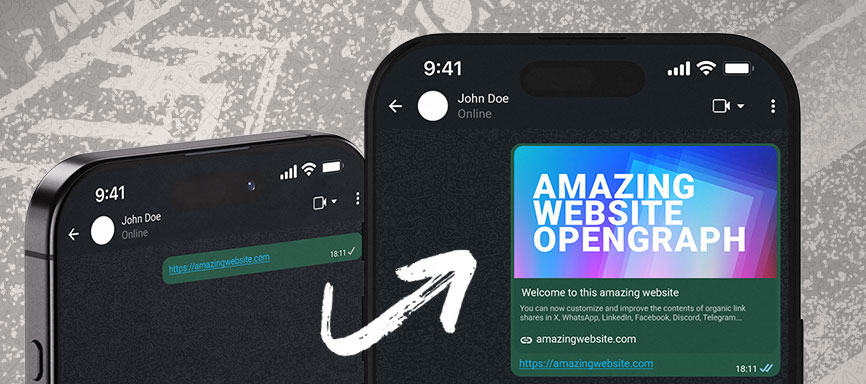
When a URL is pasted into a chat, WhatsApp sends a crawler to the destination and looks for Open Graph fields, especially og:image. If that field is wrong, inaccessible, or cached, the preview usually breaks.
<meta property="og:image" content="https://yourdomain.com/path-to-image.jpg" />WhatsApp caching is aggressive. Even after you deploy a fix, the old preview can remain attached to the URL for days.
A common workaround is to paste the same URL with a harmless query parameter so WhatsApp treats it like a new fetch target.
FAQ
WhatsApp can show smaller images, but a 1200x630 asset is far more reliable across higher-density displays.
Support is inconsistent. Standard JPEG or PNG is still the safest option for public preview compatibility.
It is not consistently documented, but it can last for days. Query-string tricks sometimes help force a new scrape.
Marketing teams often need to change public previews without waiting on developer cycles. Visualink sits in front of that distribution layer.